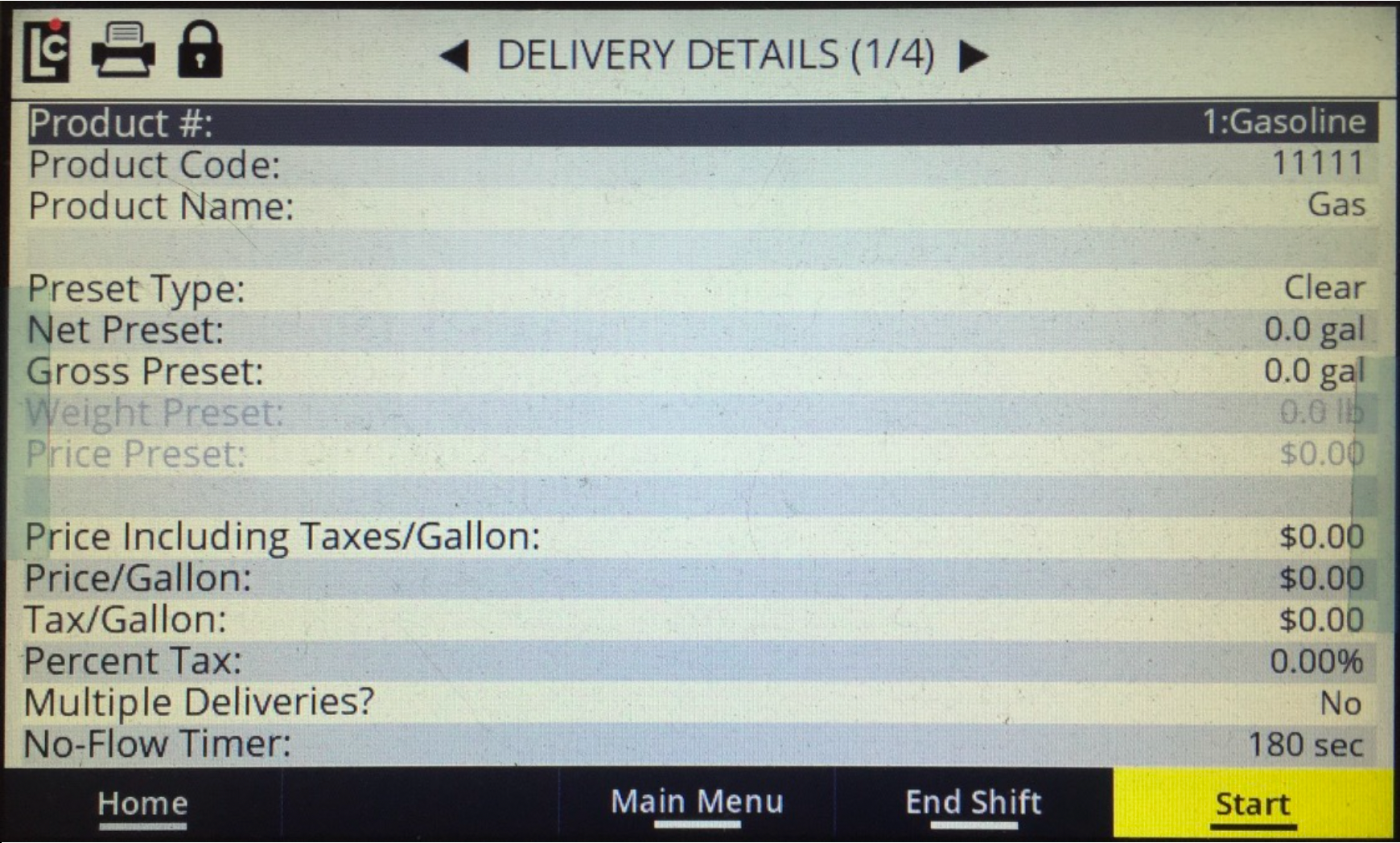
There are two ways to apply pricing to a delivery. The first method is to use the original three pricing fields to provide the untaxed price/unit along with an optional tax/unit–and/or a percent tax. New to the iQ Register is an alternate way of specifying delivery pricing which is to use the Price Including Taxes field on the Delivery Details (1/4) screen.
The Price Including Taxes field provides a way to accurately achieve a price preset. Using one pricing field that includes all taxes allows the register to always stop accurately at the desired price preset.
When any of the original three pricing fields are set, the Price Including Taxes field is set to 0.0000. If this value is set, all of the original three pricing fields are also set to 0.0000.
Follow these steps to set the value in the Price Including Taxes field:
1.Navigate to the Delivery Details (1/4) screen, by pressing the F3/Main Menu key on the Home screen, and then select the Delivery Details option on the Main menu.
2.Select the Price Including Taxes field and press the OK key.
3.Enter a value in the range -9,999.99 through 9,999.99, then press the OK key.
NOTE: The original three pricing fields will be set to 0.0000 when the “Price Including Taxes” field is set.