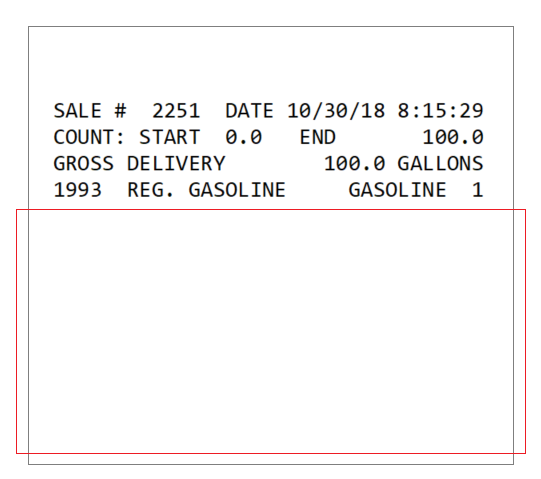
Register menu options can be found on three screens. These parameters are for configuring general functionality of the Register, and how it will interact with components in the system.
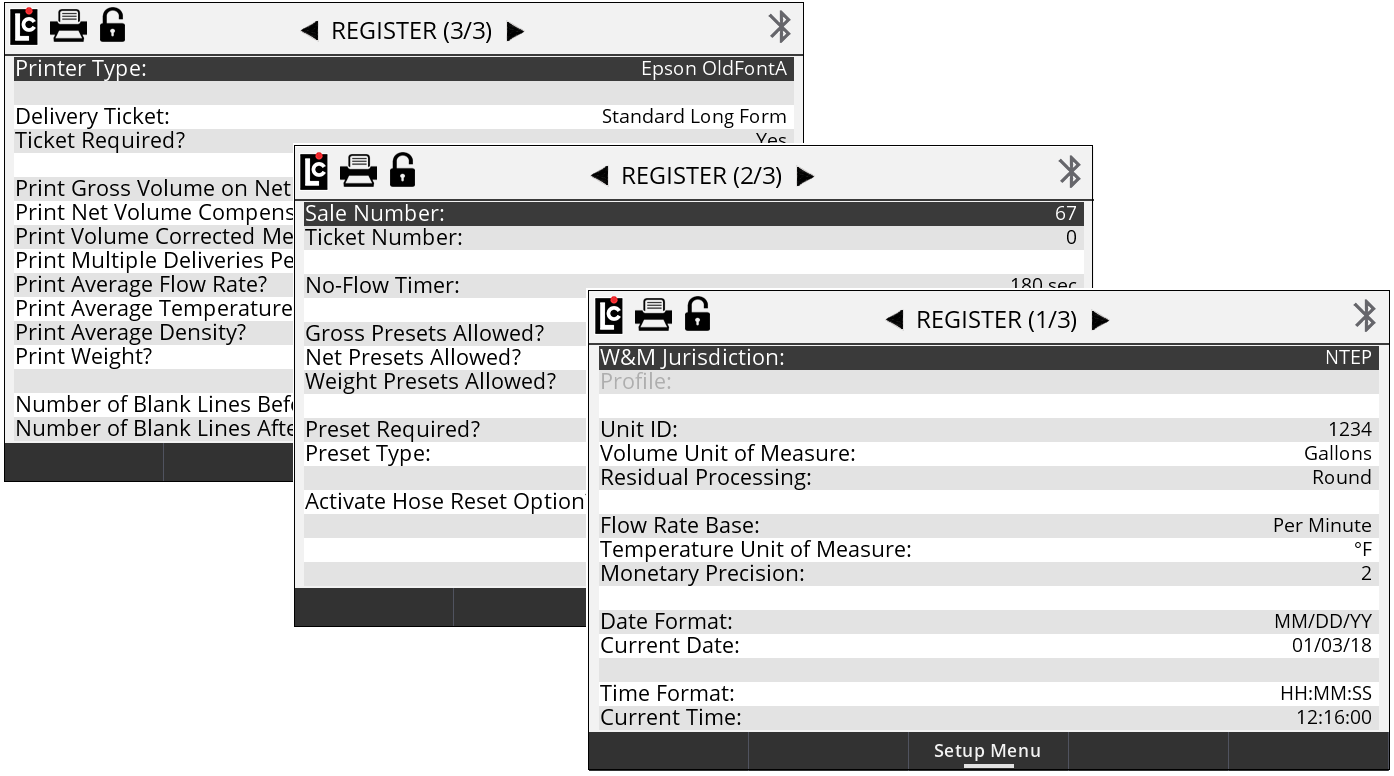
Register (1/3)
W&M Jurisdiction – Selecting the proper local jurisdiction option will automatically adjust the available setup menu options and remove options that are not acceptable based on the selection.
Options:
•NTEP - National Type Evaluation Program - US W&M
•Measurement Canada
Unit ID – A text field for identifying the equipment or meter that the Register is associated with. (Maximum - 10 alphanumeric characters)
Volume Unit of Measure – A list box for setting the volumetric unit of measure to be used by the register for flow measurement.
Options:
•Gallon
•Barrel
•Cubic Meter
•Decalitre
•Litre
•LB (Pound)
•KG (Kilogram)
•Other

Residual Processing – A list box for selecting how the Register will display volumes less than the least significant digit.
Options:
•Round - Adjust delivery amount to the closest least significant digit.
•Truncate - Throw away the remaining value and always round down.
Flow Rate Base – A list box for selecting the time unit for flow measurement. This field will affect how the unit of flow rate measure will display on the screen–and what appears on printed tickets and transactional records.
Options:
•Per Minute
•Per Hour
•Per Secord
Temperature Unit of Measure – A list box for selecting the unit of measure used when a temperature probe is connected to the Register.
Options:
•°F - Fahrenheit
•°C - Celsius
Monetary Unit of Measure – A text field for identifying the type of currency. (Maximum - 3 alphanumeric characters)
Monetary Precision – A list box that is used to select the number of decimal places to be used when printing and displaying pricing.
Options:
•0 (0) - No decimal place
•1 (0.0) - One digit after the decimal place
•2 (0.00) - Two digits after the decimal place
•3 (0.000) - Three digits after the decimal place
•4 (0.0000) - Four digits after the decimal place
Date Format – A list box that is used to set the format for displaying and printing the Register date.
Options:
•MM/DD/YY - Month/Day/Year
•DD/MM/YY - Day/ Month/Year
Current Date – A fixed data entry field setting the internal calendar of the Register according to the date format field option. The Register will update the calendar automatically according to this setting. The date can be displayed on screen, printed on the ticket, and appear in each transaction record.
Time Format – A list box that is used to set the format for displaying and printing the Register time.
Options:
•HH/MM/SS - Time will display with Hours/Minutes/Second
•AM/PM - Time will display with Hours/Minutes with am or pm
Current Time – A fixed-data entry field for setting the register time clock of the Register according to the time format field option. The Register will update the time according to this setting. The time can be displayed on screen, printed on the ticket, and appear in each transaction record.
Register (2/3)
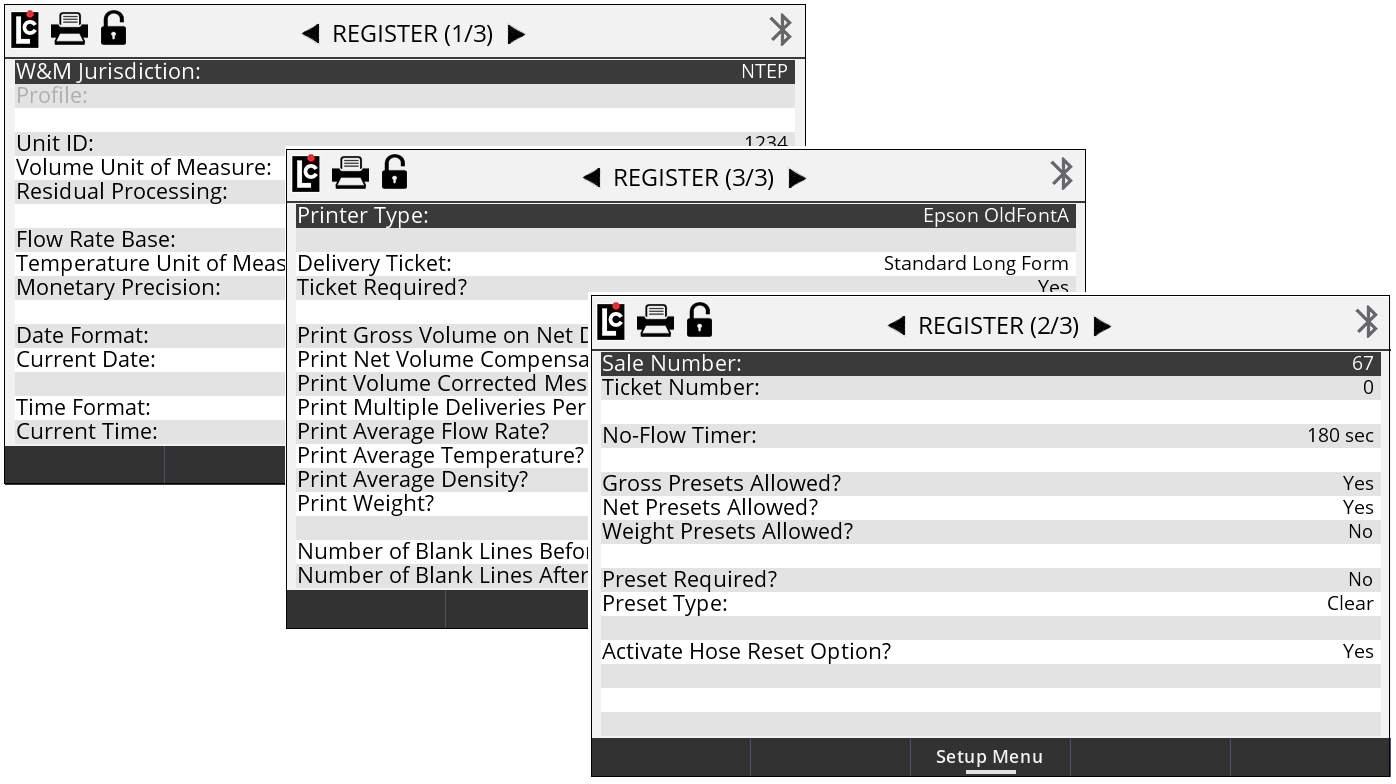
Sale Number – A numeric-only text field that will automatically increment one digit for each delivery or transaction that is started by the Register. The sale number can be set to any initial numeric value up to 6 digits, and will increment from that value. A new Register will always start from 1. This is a required field on all standard ticket formats.
Ticket Number – A numeric-only text field that will automatically increment one digit for each delivery ticket that is printed by the Register including duplicate tickets of the previous delivery. The ticket number can be set to any initial numeric value up to 6 digits, and will increment from that value. A new Register will always start at ticket number 0 which deactivates the ticket number feature. If deactivated, the ticket number will not increment and will not print on any of the delivery ticket formats.
No Flow Timer – A numeric-only text field that sets a timer (in seconds) to automatically terminate an active delivery (and prints a ticket, when applicable) if no product movement is sensed during the duration of the timer. This timer will not activate until at least one whole unit of volume has been registered by the Register.
Setting this field to 0 will deactivate the No Flow Timer. Also, setting this field to a value of 0 or a value greater than 180 (up to 3600) may activate the “Print Multiple Deliveries Per Site Message”
NOTE: See Register (3/3) to setup the “Print Multiple Deliveries Per Site Message”. |
The No Flow Timer can also be toggled on and off (180 to 0) in the Setup Delivery mode by activating the Multiple Deliveries Per Site option in Configure Delivery Setup menu.
Gross Presets Allowed? – A list box that enables or disables the option and the ability to use gross presets when making a delivery.
Options:
•No - Gross presets are not allowed
•Yes - Gross presets are allowed
Net Presets Allowed? – A list box that enables or disables the option and the ability to use gross presets when making a delivery. Net presets require an ETVC kit to be installed and temperature compensation to be active on the Register.
Options:
•No - Net presets are not allowed
•Yes - Net presets are allowed
Weight Presets Allowed? – A list box that enables or disables the option and the ability to use weight presets during a delivery.
Weight presets require that an automatic density sensor be installed, or otherwise that the manual density entry is active on the Register.
Options:
•No - Weight presets are not allowed
•Yes - Weight presets are allowed
Price Presets Allowed? – A list box that enables or disables the option and the ability to use price presets when making a delivery. Price presets require the Price/Unit to not be zero.
Options:
•At Least the Entered Price
•No - Price presets are not allowed
•No More than the Entered Price
Preset Required – A list box that specifies a requirement for the user to enter a preset value for every transaction of the Register.
Options:
•No - Presets are optional
•Yes - Presets are required
Preset Type – A list box that is used to setup how the Register will respond when the preset amount has been reached. These setting options will affect when the end delivery command is sent and also when the ticket will print.
Options:
•Clear – At the point the preset value is reached, the delivery automatically ends, the ticket prints, and the preset value is set to 0.
•Multiple – At the point the preset value is reached, the delivery is paused but remains active–until the user either presses resume, sets a new preset and presses resume or ends the delivery by pressing the End & Print button and the preset value is set to 0.
•Retain – At the point the preset value is reached, the delivery automatically ends, the ticket prints, and the preset value that was originally set is retained for the next delivery.
NOTE: See Operating the Register for more detail on selecting a preset type. |
Activate Hose Reset Options? – A list box for selecting if the Hose Reset feature will be active on the Register. When this feature is set to YES, the Register will present the onscreen action key Hose Reset when the START key is pressed. This onscreen action will display until the register has delivered up to 1 gallon (4 Litres), then this key will disappear from the onscreen action options.
Fully-packed hose: To comply with Weights & Measures requirements, it is necessary to start and stop each delivery with a fully packed hose. This will be the case with normal deliveries. However, there are times where the hose is not fully packed (for example, after a preset delivery). As such, the hose must be packed and the register zeroed prior to making the next delivery. |
Options:
•Yes - Hose reset option is active
•No - Hose reset option is not active
NOTE: See Operating the Register for more detail on using the hose reset feature. |
Register (3/3)
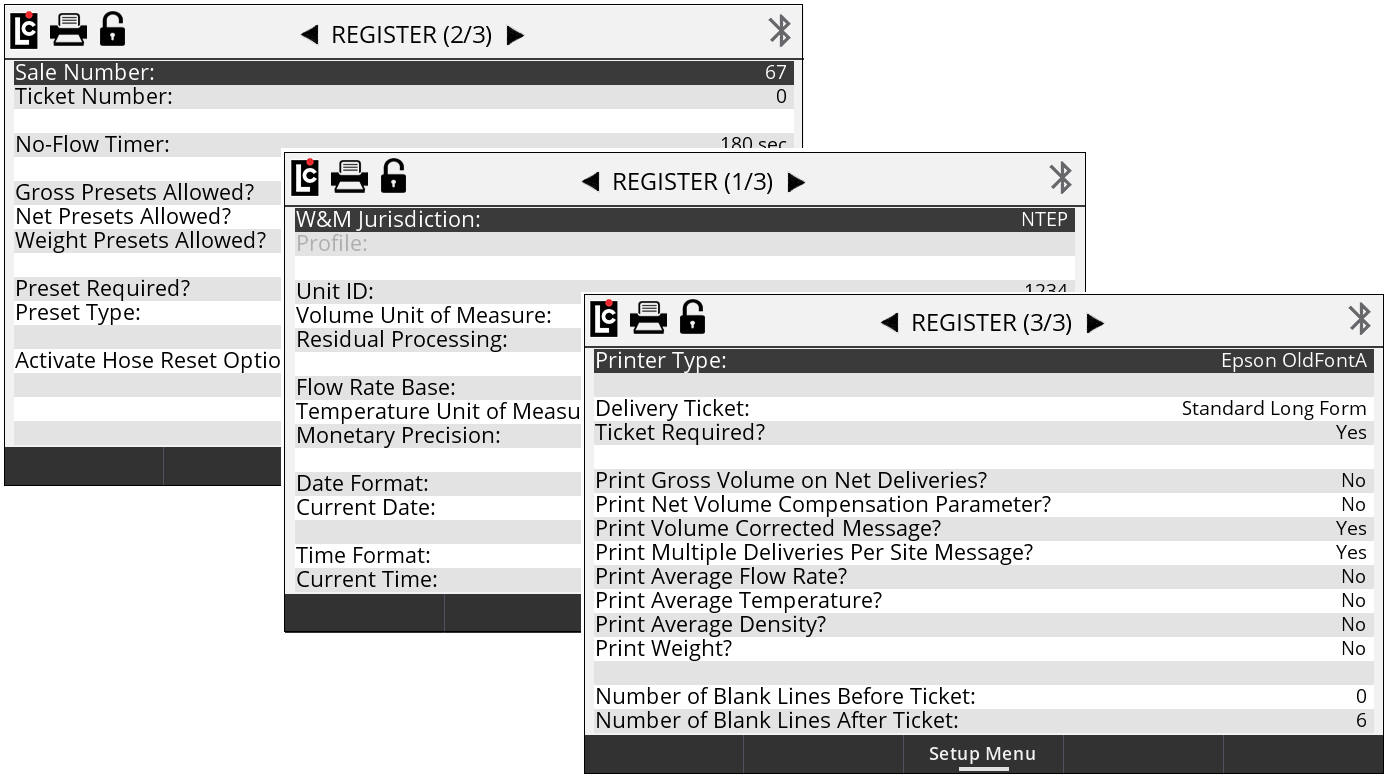
Printer Type – A list box for selecting type of printer connect to the Register–if a printer is necessary.
Options:
•EPSON NewFontB - For use with EPSON 220 roll printers
•EPSON NewFontA - For use with EPSON TM-T88iii (Wired) and EPSON TM-P80 (wireless Bluetooth) thermal printers
•EPSON OldFontA - For use with EPSON 295 Slip printers
•EPSON OldFontB - For use with EPSON 300 Roll Printers
•OKIDATA ML184T - For use with Okidata ML184T
•BLASTER - For use with Cognitive Solutions Thermal Printer
Delivery Ticket – A list box that is used to select the desired Register base ticket format to be used when printing tickets. There are four base ticket formats available, however additional information such as price, tax, header, average temperature, average flow rate, and more can be added to each base ticket format when setting up the Register.
Options:
•Standard Long Form - For tickets when a larger area is available for printing more ticket details.
•Standard Short Form - For tickets with a small fixed printing area such as a preprinted ticket previously used with mechanical registration.
•Detailed with Totalizers - For markets such as terminals and aviation that require start and end totalizers printed on the ticket.
•Long Form without Time - For use by 3rd party devices that pass through date/time, and do not require the Register time stamp on the ticket.
•English/French Long Form – Similar to the Standard Long Form ticket but with French.
•English/French Short Form - Similar to the Standard Short Form ticket but with French.
•English/French Custom – For specific Canadian markets.
•No Ticket - When Register will not print any ticket. However, a 3rd party may still pass-through print information by means of the LCP communication protocol.
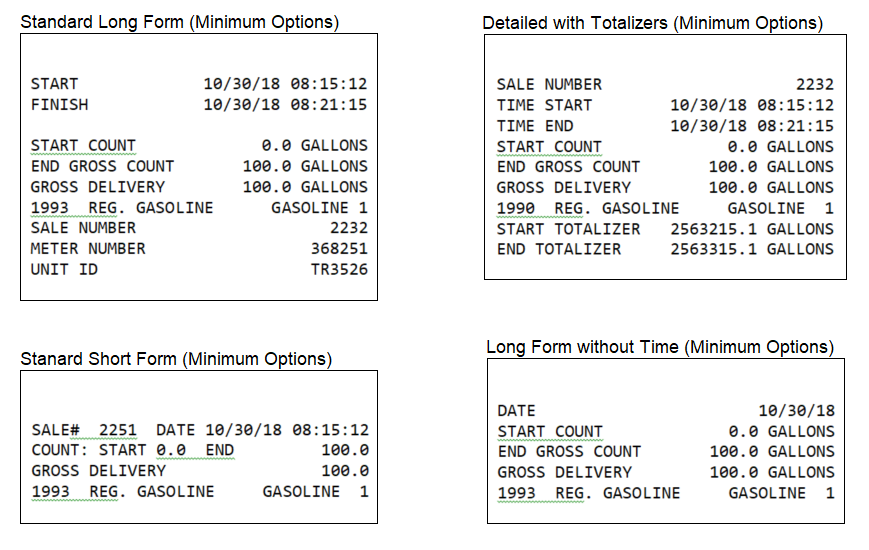
In the ticket options shown above, the minimum amount of information available is shown for each format type. Information such as ticket headers, pricing, and ticket number are options that will print on any of these formats–if data is entered into the appropriate fields. Also, there are additional fields listed in the options below that can print on all of the above tickets (when enabled).
Ticket Required? – A list box for choosing whether or not a ticket is necessary to start a delivery. In most cases, Weights & Measures-governed truck applications will require a printed ticket for each transaction.
Options:
•Yes - The previous delivery ticket must be printed completely, a new ticket must be in place and the printer ready in order to begin a delivery.
•No - No ticket is required to begin a delivery. However, if a ticket printer and ticket are in place, then the Register will be able to print.
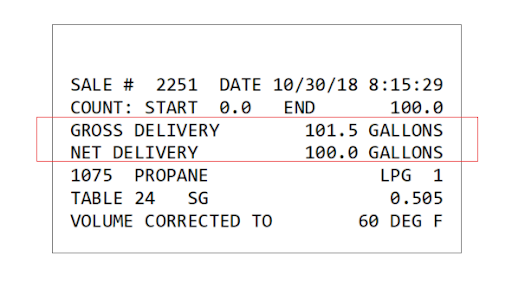
Print Gross Volume on Net Deliveries? – A list box used to add a printed line(s) to the delivery ticket showing the Gross Delivery information along with the Net Delivery information when temperature compensation is active. If temperature compensation is not active, all delivery amounts will automatically be Gross Delivery amounts. If using the ticket format Detailed with Totalizers, the Gross Totalizers will also be printed with the Net Totalizers when active.
Options:
•Yes - Prints line(s) on the ticket showing the Gross Delivery information
•No - No additional line(s) are printed
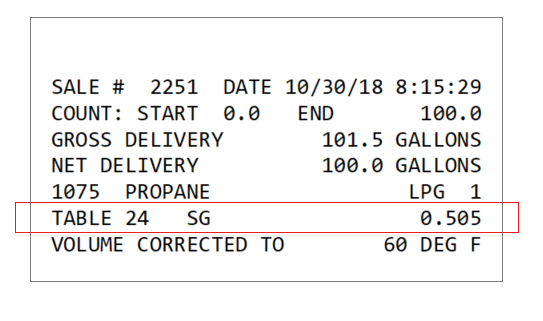
Print Net Volume Compensation Parameter? – A list box for adding a printed line to the delivery ticket that shows the selected temperature compensation table and parameter that are currently in use by the Register.
Options:
•Yes - Prints a line on the ticket showing compensation table and parameter
•No - No additional line is printed
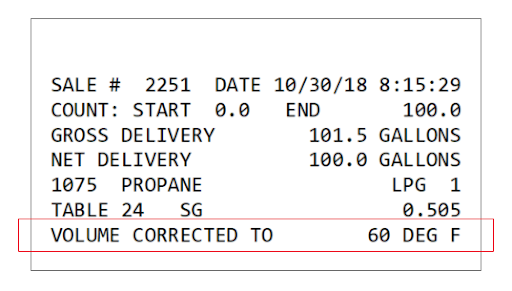
Print Volume Corrected Message? – A list box for adding a printed line to the delivery ticket that shows the product selected is volume-corrected to the selected base temperature of the compensation table. Typical settings for base temperature at 60 °F / 15 °C–depending on the selected compensation table. However, some tables may vary.
Options:
•Yes - Prints a line on ticket showing the VOLUME CORRECTED TO message
•No - No additional line is printed
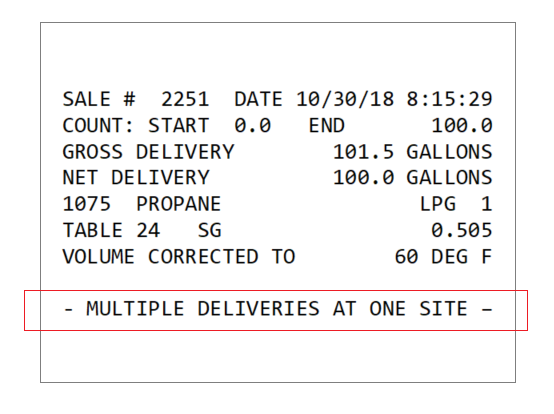
Print Multiple Deliveries Per Site Message? – A list box for adding a printed line to the delivery ticket showing that multiple deliveries were made at a site. This message will print only if the No Flow Timer is set to value of 0 seconds or greater than 180 seconds. This line will also print if the Select Multiple Delivery is an active option in the Setup Delivery mode.
Option:
•Yes - Prints line on ticket: MULTIPLE DELIVERIES AT ONE SITE
•No - No additional line is printed
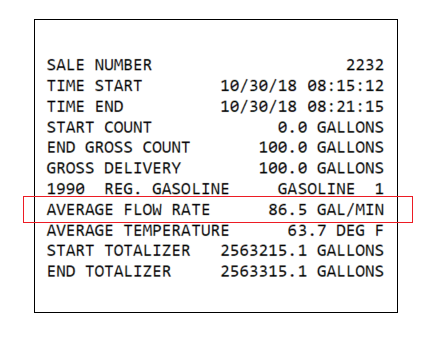
Print Average Flow Rate? – A list box for adding a printed line to the delivery ticket showing the average flow rate throughout the duration of a delivery transaction.
Options:
•Yes - Prints line on the ticket displaying the AVERAGE FLOW RATE
•No - No additional line is printed
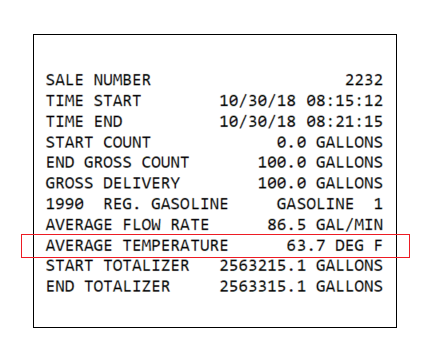
Print Average Temperature? – A list box for adding a printed line to the delivery ticket showing the average temperature throughout the duration of a delivery transaction.
Options:
•Yes - Prints line on the ticket showing the AVERAGE TEMPERATURE
•No - No additional line is printed
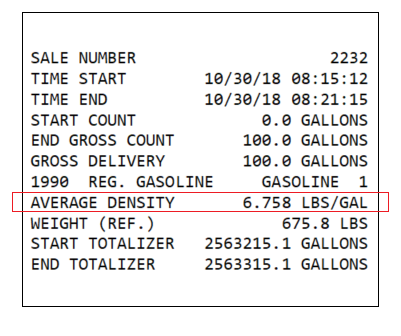
Print Average Density? – A list box for adding a printed line to the delivery ticket showing the average density throughout the duration of a delivery transaction.
Options:
•Yes - Prints line on the ticket showing the AVERAGE DENSITY
•No - No additional line is printed
Print Weight? – A list box for adding a printed line to the delivery ticket showing the weight (reference) of a delivery transaction.
Options:
•Yes - Prints line on the ticket showing the WEIGHT (REFERENCE)
•No - No additional line is printed
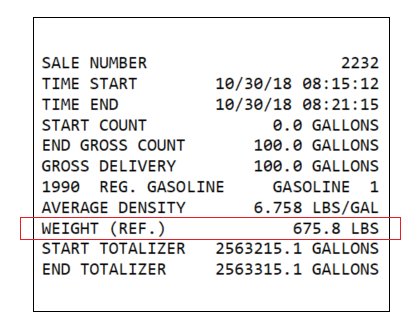
Number of Blank Lines Before Ticket – A numeric-only text field that will print (feed) blank lines on all tickets prior to printing any of the Register printer text. Typically, this helps to align a ticket when using a slip printer. (Maximum - 20 lines)
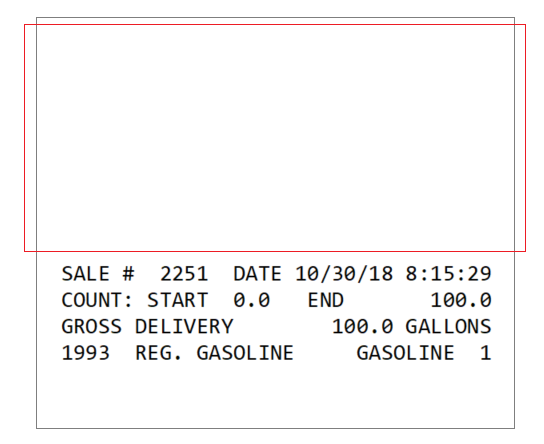
Number of Blank Lines After Ticket – A numeric-only text field that will print (feed) blank lines on all tickets after printing the last line of text send to the Register. With roll printers, this typically helps to feed the roll paper beyond the razor used to remove the ticket. (Maximum - 20 lines)