Keypad
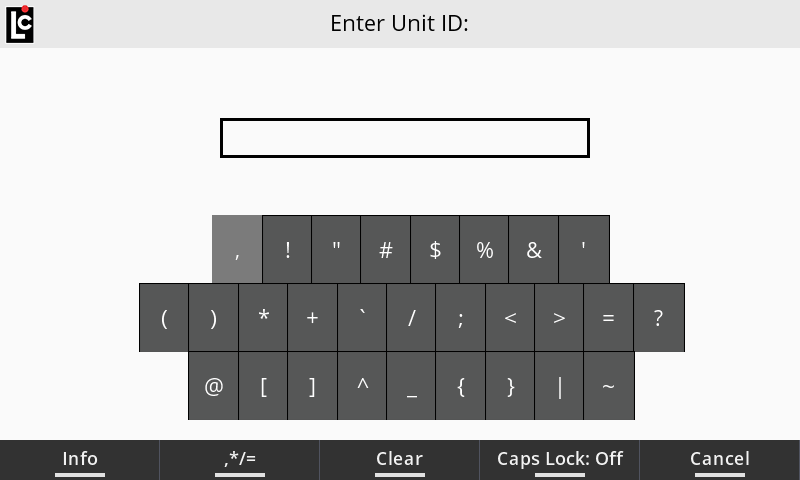
The Register keypad serves as a tool for basic delivery functionality, data entry and screen navigation. There are three sections of the keypad, including function keys, alphanumeric keys and, navigation keys. See the detail explanations below.
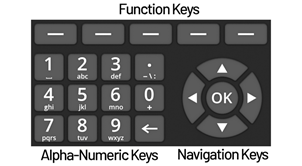
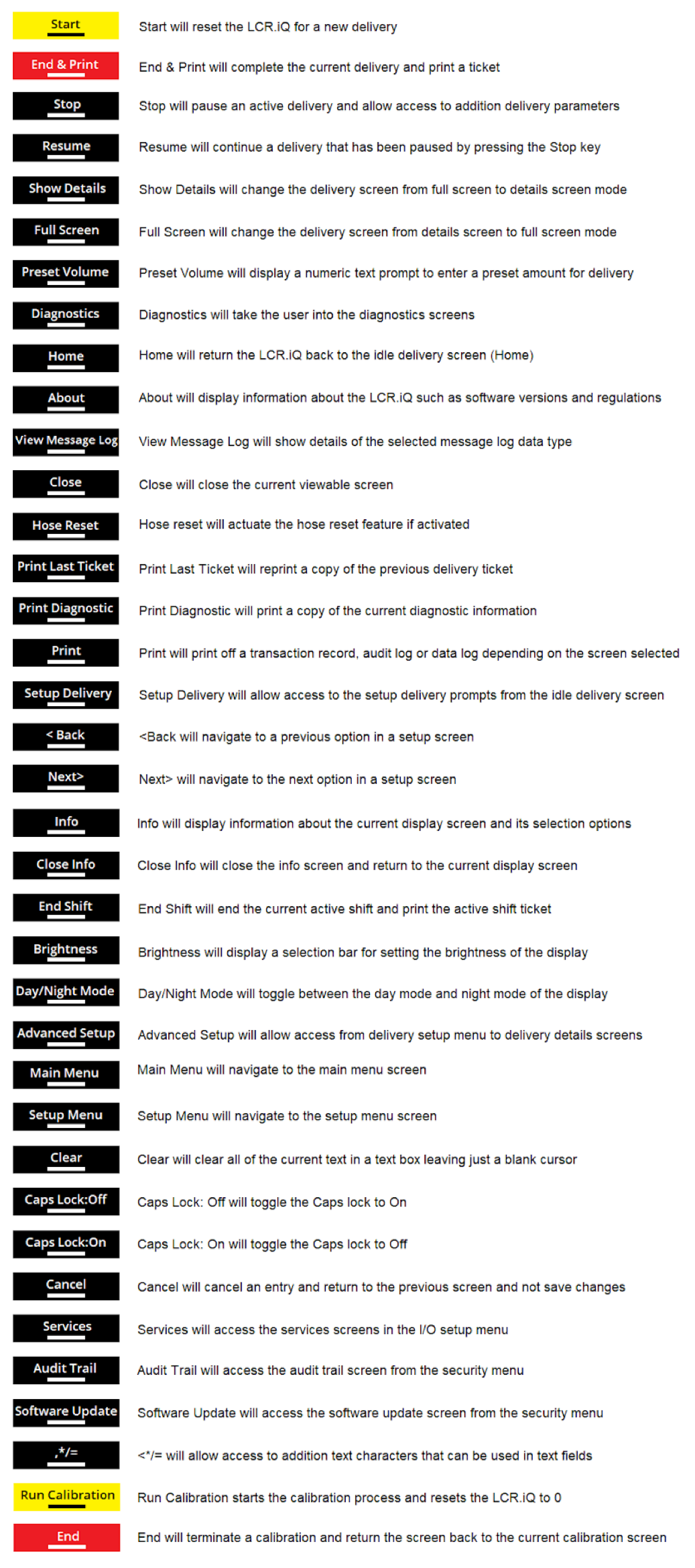
Function keys provide a simple way to perform specific tasks such as starting a delivery, setting a preset amount, or accessing a different menu. Each function key corresponds to an onscreen action. The onscreen action of the function keys will vary on different screens or menus.
Onscreen actions that appear in white are actions that are available to the user. Onscreen actions that appear in gray are unavailable (in the current context). Onscreen actions that correspond to a function key may have different background color for easier identification and operation. In some screens, one or more of the function keys may not correspond to any onscreen action. In such cases, the onscreen section for that function will be empty.
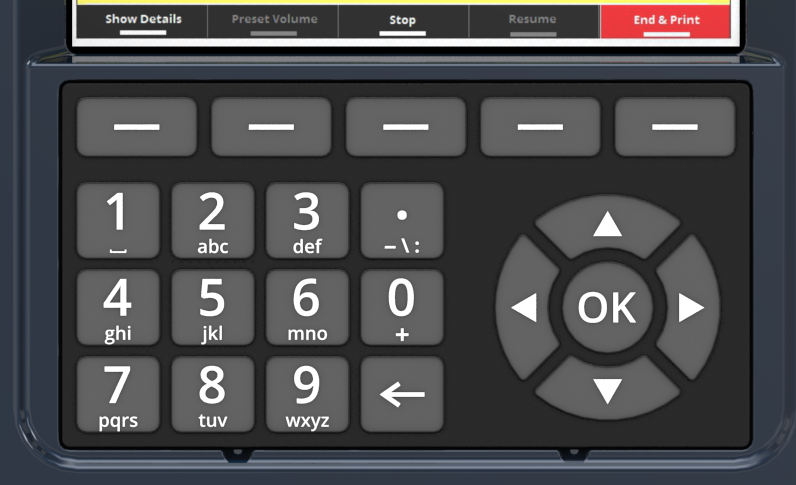
Navigation Keys give the user a simple way to move among screens, and also help in making selections. The up and down arrow keys move the selection bar up and down through screens, menus, and list boxes. The right and left arrow keys are for scrolling through setup screens, and also move a cursor left or right within a text box. Use the OK key to enter a field that you've selected, or to accept data that has been selected or entered for a field.
Alphanumeric Keys are primarily for data entry, such as setting a preset amount, entering a delivery prompt, or programming the register. Each alpha-numeric key has the ability to display multiple characters according to the number of times that you press a key. Press an alpha-numeric key once to display the primary key function, which is the largest character shown on each key. Here's an example: If the cursor is within an text box field, pressing the 5 key one time will display the number 5.
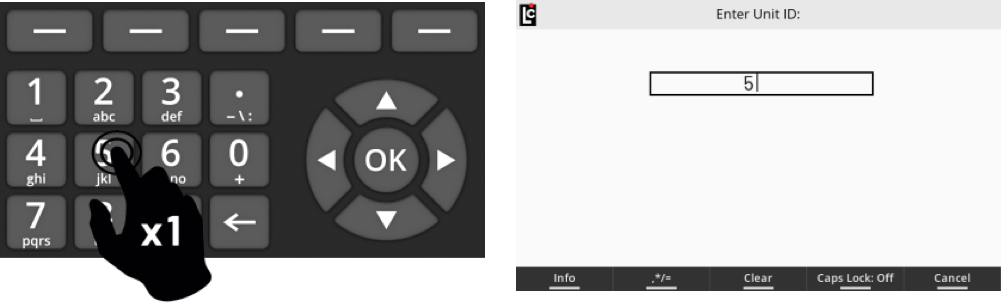
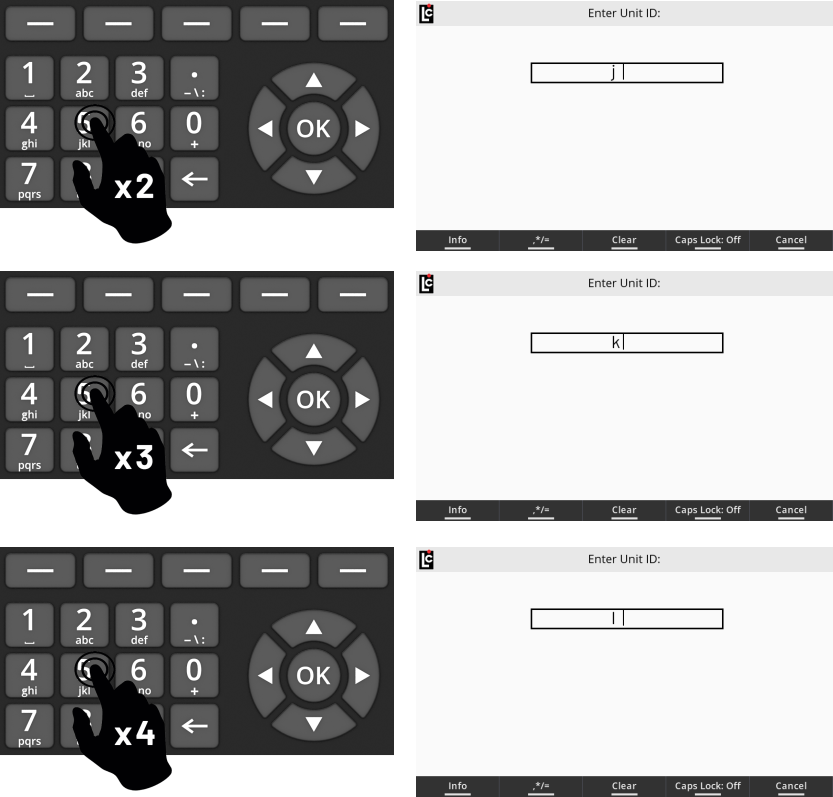
Pressing an alpha-numeric key multiple times will display additional characters. These additional characters are the smaller characters shown on each key. (Default setting is Caps Lock set to Off, which results in lower case letters. Press the Caps Lock key to turn on capitalization and enter all capital letters.) Let's extend the example above: With the cursor in a text box field, pressing the 5 key twice (within 1 second) will display the letter J. Pressing the 5 key three times successively (within 1 second) will display a K; pressing the key four times will display an L.
When accessing a numeric-only text box field, the alphanumeric keys will only display numbers when pressed. Pressing a key multiple times within a numeric-only field will simply display the same number (repeatedly).
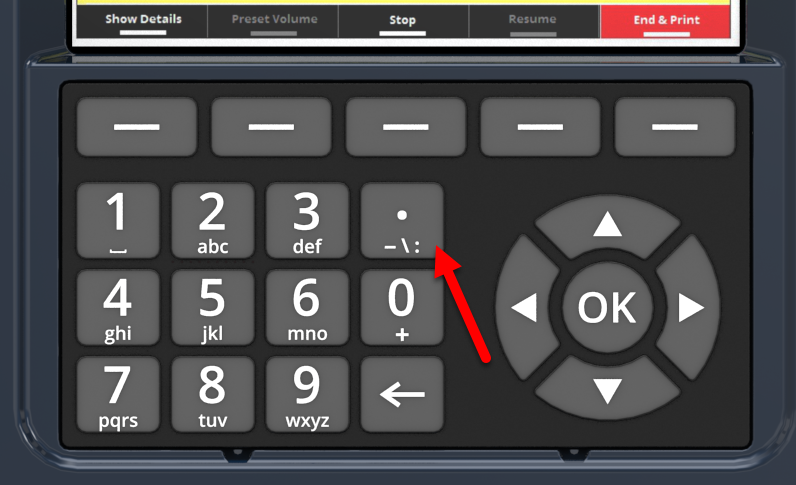
There is an additional alpha-numeric key that enables quick access to the most commonly used symbols on the Register. These options are . (point) - (dash) \ (slash) : (colon) .
The location for this key can be seen in the figure below.
NOTE: Additional symbols are available when a text box screen is displayed. A function key containing the symbols , * / = will appear. Pressing this key will display a chart of many additional available symbols. Use the navigation keys to select these symbols. |