Upgrading the Register firmware is straightforward. This guide explains how to upgrade the firmware with a USB drive.
Follow these steps:
1.Obtain the firmware upgrade from the Liquid Controls website (if available) or a factory representative. The firmware will be named SR1000_Vx.xx.xx.deb (x.xx.xx represents the current firmware version number).
2.Use a standard USB flash drive for the upgrade and create a folder on the root of the drive called “Import”. (USB\Import).
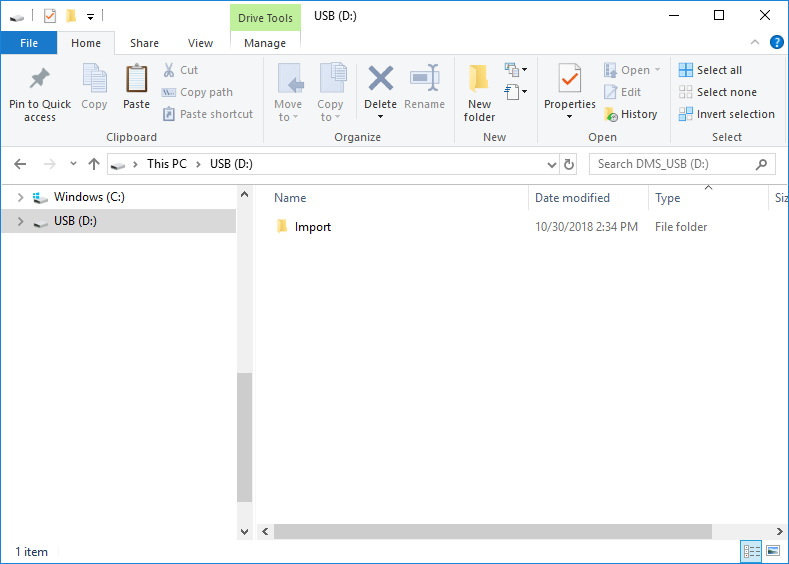
3.Copy the firmware from the computer where it was previously saved directly into the Import folder on the USB drive.
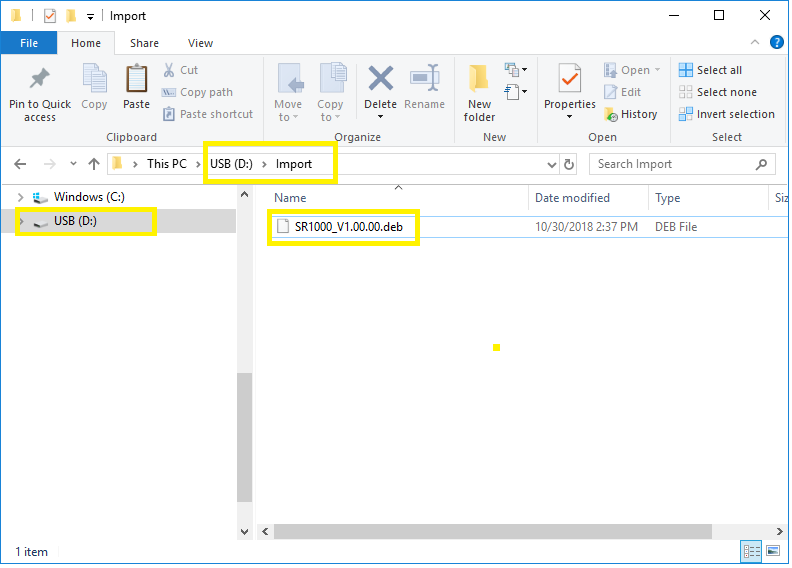
4.Remove the USB drive from the computer.
5.Insert the USB drive into the USB port on the main circuit board of the Register.
6.If power is not already applied to the Register, turn on the power, then continue.
7.Loosen the calibration bolt on the side of the Register until the unit is in the calibration mode and the Main Menu is displayed.
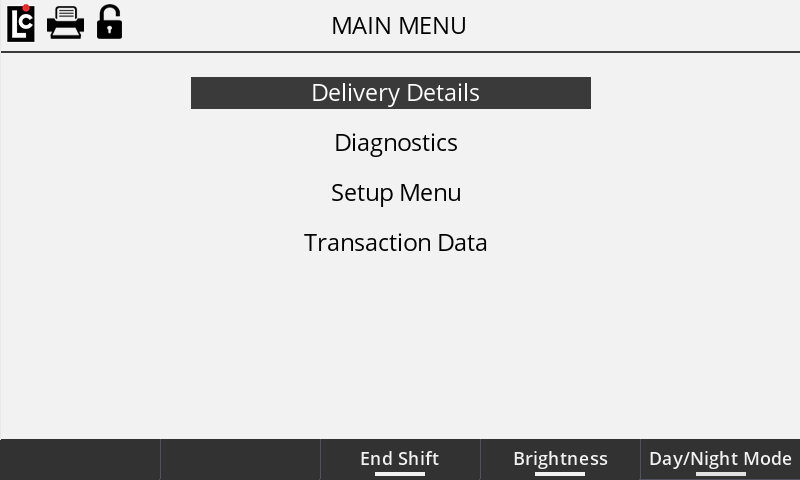
8.Navigate to the Setup Menu option and press OK.
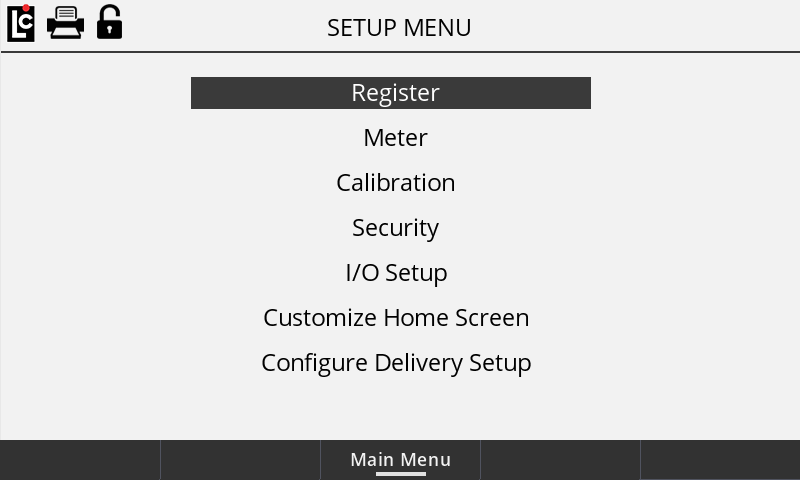
9.Navigate to the Security option and press OK.
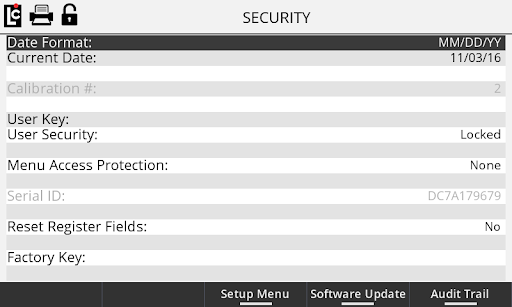
10.Press the function key labeled Firmware Upgrade.
11.Select Copy Files from USB option and press OK. This will copy the firmware from the USB drive to the drive of the Register. However, you must continue to complete the load process. Once loaded, a screen stating File Load was successful should appear, then press OK.
12.Select Update (MASTERLOADx.iQ) Firmware and press OK.
13.Select the file to be loaded (SR1000_Vx.xx.xx) and press OK. If you have more than one version of firmware saved on the USB drive, make sure you are selecting the most recent version before pressing OK.
14.Once the firmware is loaded, the Register will automatically reboot.
15.Remove the USB drive from the Register once complete.
16.If the Register requires a Clear All following the upgrade, a screen will display suggesting that a clear all be done. As necessary, follow the procedure to Perform a Clear All.
17.If no Clear All is necessary, the upgrade should be complete at this time.